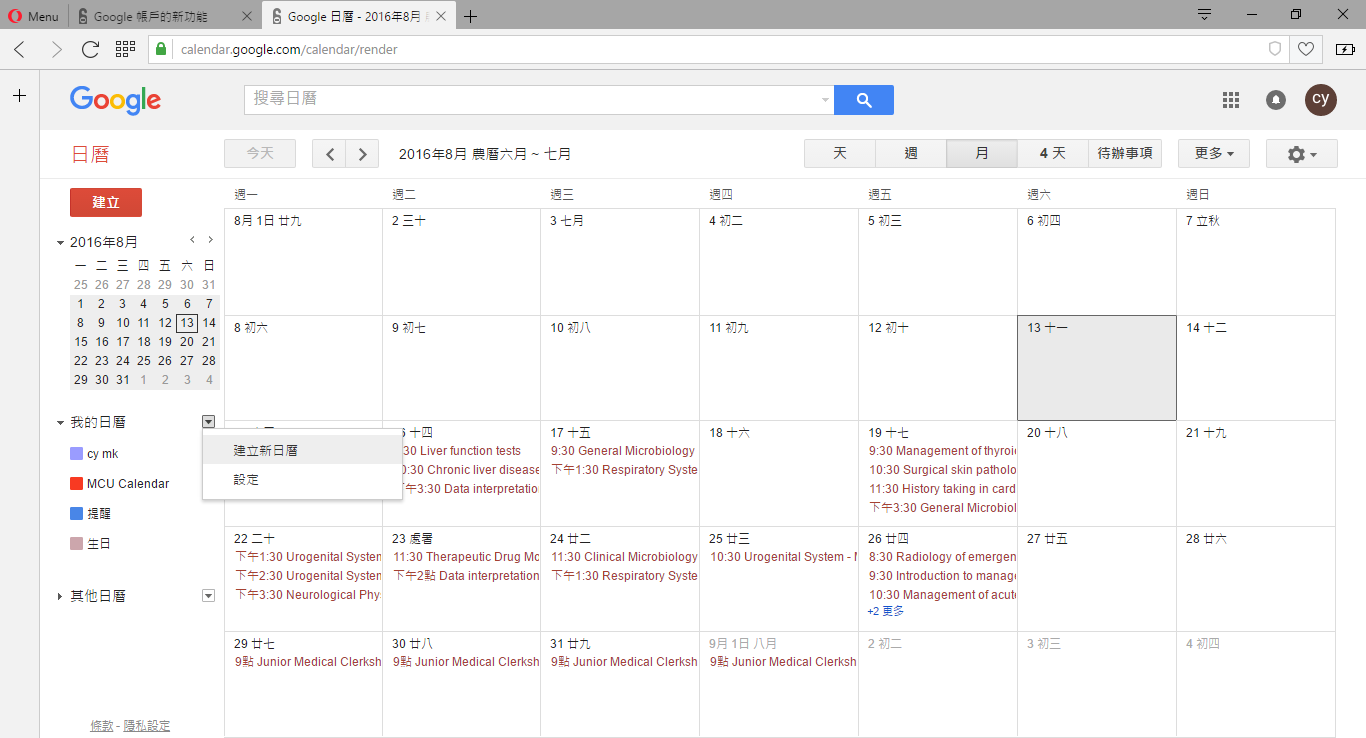
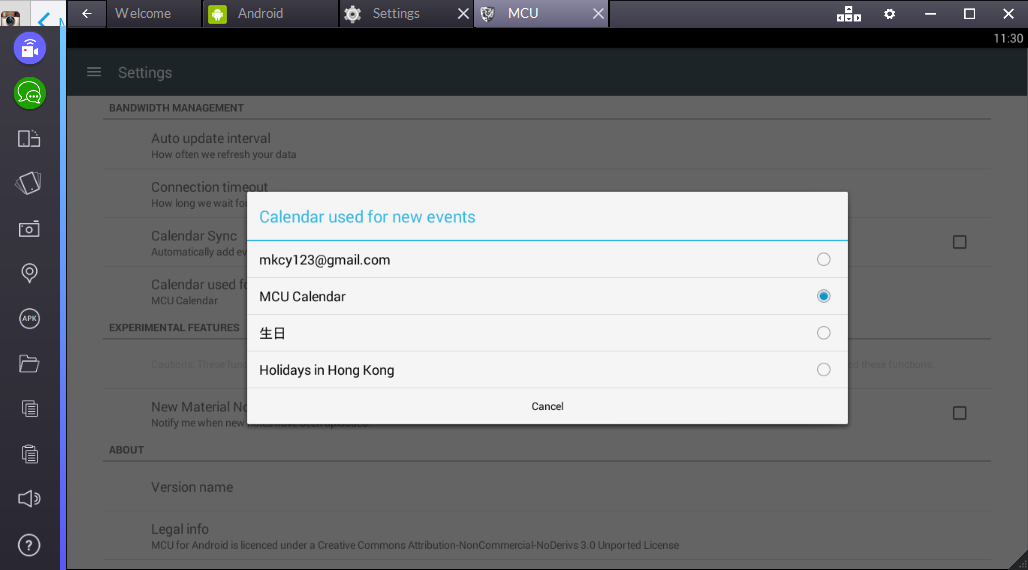
Before starting, we recommend creating a new calendar for timetable.
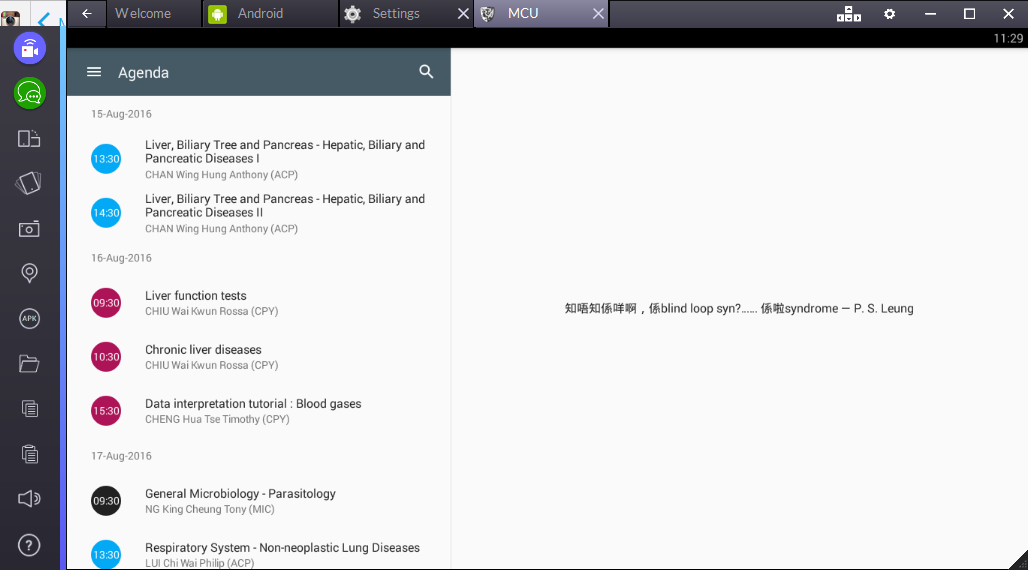
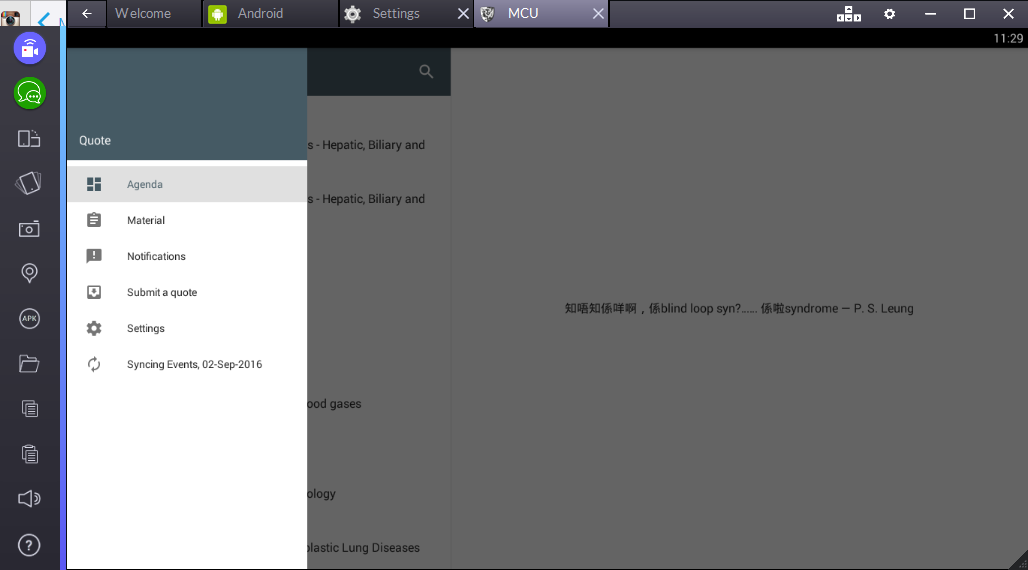
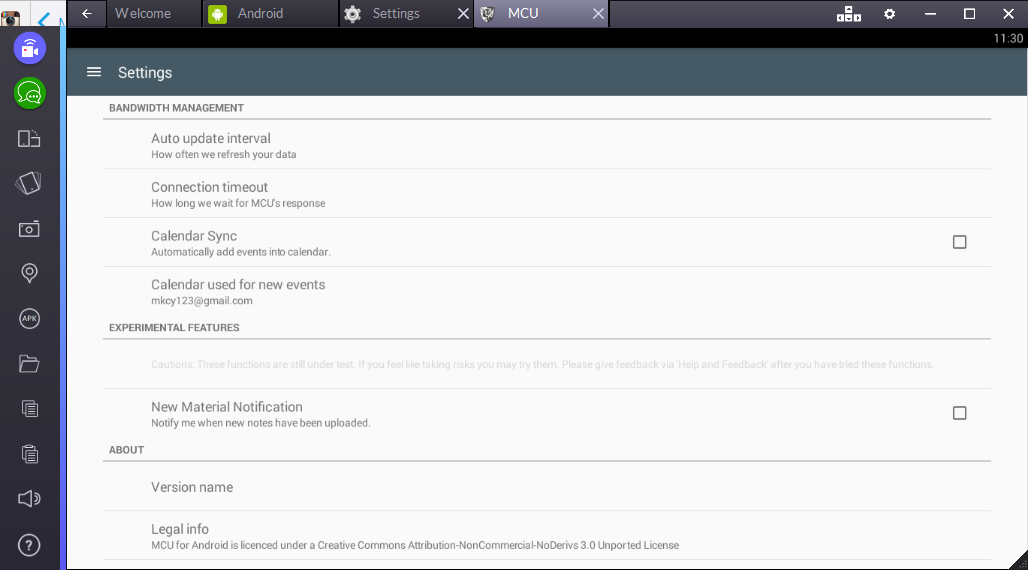
If you cannot find the new calendar, don't worry. Close bluestacks and start it again to synchronize the changes and try again.
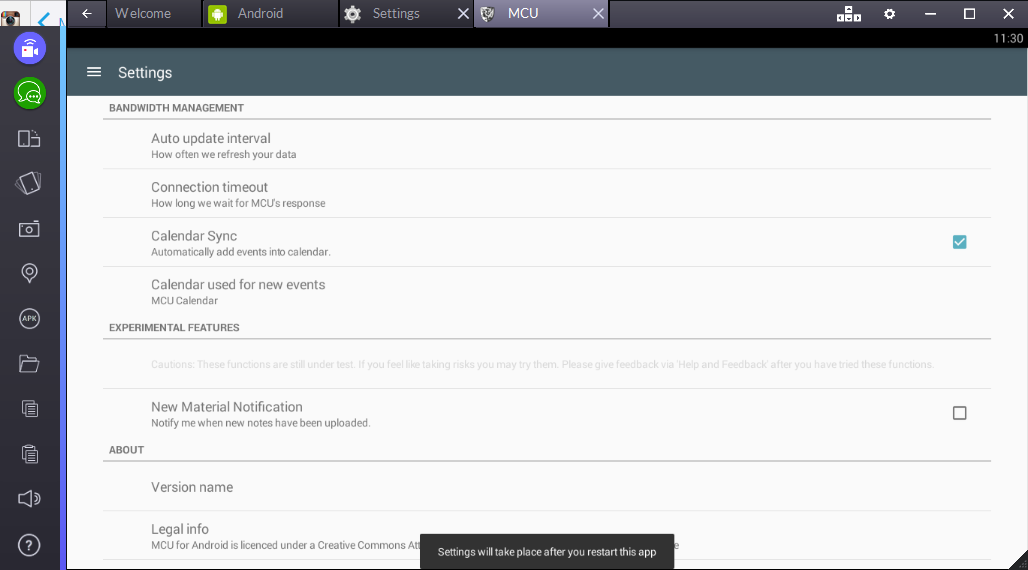
Close the app and reopen it from the Android tab. Wait for an hour or so and the calendar will be automatically synced.

Note: Bluestacks will run in the background of your computer.
Please keep it running in the background or else the calendar will not sync properly.